แสดงบทความที่มีป้ายกำกับ solidworks แสดงบทความทั้งหมด

วันพุธที่ 14 มกราคม พ.ศ. 2569

SolidWorks Drawing Template Show Errors Properties Fields like $PRP:"ANCDEXXX"

 Good morning of 1/14/2026 to my readers.

Today, I found a problem on my drawing template about property text in drawing template fields.

I try to resolve the problem by making a new template, but the problem is still there.


Fig. 1: A lot of properties text in the drawing template field.


After trying to find the way to solve it, I found that the easy way is like peeling a banana. 

You can use inside menu by clicking follow this step only,

1. In the menu bar, click view

2. Select Hide / Show

3. Select "Annotation Text Expression."


P.S. You can use "Annotation Link Errors" and "Annotation Link Variables" if you want.

I hope this way can help you all.

Have a nice day.


วันเสาร์ที่ 9 เมษายน พ.ศ. 2565

Testing the difference in meshing to see how much it affects the results.

    Hello, today I have some free time so I have to write a blog on this topic. The matter of the story is that some people do not accept the results of FEA by beam mesh. So I have a doubt that it's actually a solid mesh in a three-dimensional beam shape. How accurate will it be? Today we will prove it.

    First of all, thanks to the trial version of Midas, for which I have compared the MeshFree software too.

    There are two types of specimens that we will be testing. It is a full line beam, 1 meter long, and a beam with a slit to insert the beam crosswise. which can be seen in Figure 1.

Fig.1 Dimension of the specimens.


    A simple test is that we lock one end of the beam and apply a force of 500 N on the other end.

The type of the main beam is a JIS G3466 Rectangular tube 200 x 100 x 6. and across the inserted beam is a Square tube 50 x 50 x 6

   The section properties of Rectangular Tube 200 x 100 x 6 as below.

Unit mass = 26.4 kg/m

Area = 33.63 cm²

Second moment of area; Ix = 1700 cm ⁴ , Iy = 577 cm ⁴

Radius of gyration; ix = 7.12 cm , iy = 4.14 cm

Elastic section modulus; Zx = 170 cm³ , Zy = 115 cm³

Plastic section modulus; Zpx = 213 cm³ , Zpy = 132 cm³ 

Torsional inertia = 1,420 cm ⁴

Torsional modulus constant = 200 cm³


and the section properties of Square Tube 50 x 50 x 6 as below.

Unit mass = 7.56 kg/m

Area = 9.633 cm²

Second moment of area; Ix = 29.5 cm ⁴ , Iy = 29.5 cm ⁴

Radius of gyration; ix = 1.75 cm , iy = 1.75 cm

Elastic section modulus; Zx = 11.8 cm³ , Zy = 11.8 cm³

Plastic section modulus; Zpx = 15.3 cm³ , Zpy = 15.3 cm³ 

Torsional inertia = 53.2 cm ⁴

Torsional modulus constant = 18.2 cm³


วันพฤหัสบดีที่ 23 ธันวาคม พ.ศ. 2564

How to solve SolidWorks Validation Error.

   The problem some students or practicing students are facing right now is the warning window from the program.     

  This copy of SolidWorks did not pass validation. Saving files will be disabled if you continue to use this copy of SOLIDWORKS...


This popup will be showing up every 5 minutes 

 You can download - extract and run this to solve the problem. CLICK HERE!  ( No dangerous )

P.S. Should block all package outgoing with TinyWall before using SW.

You can download TinyWall from https://tinywall.pados.hu/download.php

Good luck.

วันพุธที่ 17 พฤศจิกายน พ.ศ. 2564

How to solve the low resource message or crash when using the extremely solidworks.

 I think someone will meet the problem with the warning popup when using solidworks eg.


The easy way to solve this problem is in the picture.
Adjust the GDI Process Handle Quota from 10000 to 18000 and then restart your PC.


วันจันทร์ที่ 1 พฤศจิกายน พ.ศ. 2564

SolidWorks 2021 Change Splash Image.

Tired of having to see the same image again and again every time you open SolidWorks?

How exciting is it that today I'm here to tell you that you can change the image shown at the start of the program yourself.

Today I'm going to give you an example of how to change a Splash image so everyone can try it out.

In my case, I'm using SolidWorks 2021 SP5.0 Well, let's do it.


1. Create a new folder where and whatever name you want.


2. Copy the file named "sldres1u.dll" from the folder where the program is installed, usually C:\Program Files\SOLIDWORKS Corp\SOLIDWORKS\lang.
Put it in the folder you created.


3. Prepare about 30-40 images you want to make them versatile and not boring. The image must be an image with no background. This will be more beautiful than a picture with a background.


3.1 In the image preparation process Maybe use rendering with background cut off. You can use the Render Tools in Solidworks right away.


4. Prepare Resource editor type tools such as Resource Hacker, RisohEditor, Anolis Resourcer, etc.


5. Open the sldres1u.dll file with the Resource editor you use.

6. Go to PNG section and start clicking on the file that starts with IDR.

 Each image name has 3 resolution levels: small images for display on small screens, size 600 x 402 pixels, medium images for display. The general size screen will have a size of 900 x 603 pixel, a large image for display on a high-resolution screen will have a size of 1200 x 804 pixel. In the observation of medium-sized images, there will be letters MED in the name and large images. There is a letter LRG in the name.


7. I'm going to start with the picture titled. IDR_SS_BETA_IMAGE1 : 1033 by right-clicking and selecting "Replace Resource".


8. Keep doing this until all files starting with IDR characters.


9. Press Save after done.


10.Copy or Cut the "sldres1u.dll" file to overwrite the original one.


11.Try open SolidWorks to see the changes.


See in video version : 


11/01/2021 EngineerM ConveyorMan

วันศุกร์ที่ 20 พฤศจิกายน พ.ศ. 2563

รับจูนเครื่องคอมพิวเตอร์เพื่อการใช้งาน SolidWorks

 มีหลายคนตั้งคำถามเรื่อง Spec เครื่องที่ใช้งาน SolidWorks และก็มีหลายคนที่มาตอบ หนึ่งในแนวทางของคำตอบแบบสำเร็จรูปเบ็ดเสร็จเด็ดขาดที่พบเห็นได้บ่อยมากก็คือ บอกให้ผู้ตั้งคำถามไปซื้อ Workstation ไม่ว่าจะเป็น PC หรือ Notebook

ผมก็เคยทดลองใช้ Workstation Brand อยู่ช่วงหนึ่งและในช่วงนั้นก็ได้อาศัยความไม่รู้จริงของตนเองไปบอกให้ผู้อื่นทำตามตนไปสองสามครั้ง ก็ต้องกราบขอโทษย้อนหลังด้วยที่อาจจะทำให้ท่านเสียเงินเยอะแต่ขอยืนยันว่าผมไม่ได้มีส่วนได้ประโยชน์กับเงินตรงนั้นแม้แต่น้อย
วันหนึ่งผมได้ลงทุนซื้อและยืมการ์ดจอมา 8 รุ่น โดยที่ทั้งสองรุ่นเป็นชิปเดียวกัน ( คู่แรก GT630 และ Quadro 600 คู่สอง FireProV4900 และ HD6670 คู่สาม QuadroK2200 และ GTX 750Ti คู่สี่ Vega64 กับ Vega frontier )
จากนั้นก็ไล่เปลี่ยนการ์ดทีละคู่ พร้อมเปิดใช้งาน SolidWorks ไล่ไปทีละตัว และเก็บค่า Registry ที่เปลี่ยนแปลงไป จนครบ จำได้ว่าตอนนั้นใช้เวลาประมาณ 2 วัน 2 คืน และกลับมาใส่ซ้ำอีกในตัวที่ค่าไม่แตกต่าง
( ในขั้นตอนนี้ใช้เวลาและยุ่งยากมากๆเพราะต้องทำซ้ำไปซ้ำมาบนเครื่องเพียง 1 เครื่อง เพราะไร้เครื่องสำรอง การใส่การ์ดใหม่แต่ละครั้งต้องถอน Driver ก่อนเสมอเพราะมีการจอฟ้าเกิดขึ้นหลายครั้ง )
ส่วนการทดสอบกับ SolidWorks นั้นผมได้ทดสอบกับ SolidWorks 2018
และ SolidWorks 2019 ซึ่งผลการทดสอบเดิมๆนั้นเป็นไปตามที่ผมและอีกหลายท่านแนะนำไปในเบื้องต้น นั่นคือ Workstation VGA ดีกว่าในทุกผลการทดสอบครับ คือเสียบการ์ดปุ๊บ ลงไดรเวอร์ปั๊บ เปิดโปรแกรมมาใช้งานได้เลย เฟรมเรตดี ลื่น ไม่ต้องปรับแต่ง
เบื้องต้นนั้นผมคิดว่าการแก้ไข Registry เพื่อให้การ์ดจอทั่วไปหรือที่เราเรียกกันบ้านๆว่าการ์ดจอเล่นเกมส์นั้นสามารถใช้โหมด "RealView" ได้นั้นคือสุดยอดแล้ว ผมได้ใช้วิธีนี้มาโดยตลอดก่อนที่จะกลับมาศึกษา Registry หลายๆค่าอีกรอบ
หลังจากนั้นมาหลายเดือนผมก็พบว่า การใช้งาน RealView บนการ์ดเกมส์นั้นมีจุดด้อยอยู่ที่ Framerate ในขณะที่ทำงาน Assembly และ Drawing
โดยเฉพาะงาน Drawing ที่ซับซ้อนนั้นจะช้ามากจนไม่อยากนั่งทำงาน มีหลายครั้งที่จำเป็นต้อง Section view ในชิ้นงานที่มีส่วนประกอบและงานผิว ทำเอาความเซ็งถาโถมเข้ามาใส่อย่างบ้าคลั่งจนต้องอาศัยการเปิดเพลงรอ
จุดนี้เองทำให้ผมเริ่มลงมือศึกษาอีกรอบ และครั้งนี้ผมก็ได้พบคำตอบที่ผมคิดว่าน่าจะเป็นภูเขาลูกที่สองแล้ว ไม่ได้เป็นความมั่นใจในภูเขาลูกแรกแบบที่เคยเป็น ทุกผลการทดสอบกลับตาลปัตร พลิกกลับข้างกันแทบทั้งหมด
หลังจากปรับแต่งค่าบางอย่างกลับทำให้เหล่าการ์ดเกมส์หนูทดลองกลับทำคะแนน Rx ได้ผลดีกว่าการ์ด Workstation เกือบยกแผง ( เหลือ GT630 ตัวเดียวที่ยังสูสีแบบกินไม่ลงกับ Quadro 600 ทั้งนี้เพราะเป็นการ์ดตัวเล็กสุดและมีความเร็วเท่ากัน )
ผมสรุปทันทีเลยว่า SolidWorks ได้ล๊อคค่าความสะดวกสบายในการทำงานไว้เฉพาะกับการ์ด Workstation เท่านั้น และน่าโมโหมากกับคนทำงานที่ใช้การ์ดเล่นเกมส์ เพราะจริงๆแล้วการ์ดเล่นเกมส์มีผลการทำงานที่ดีกว่าการ์ด Workstation ไม่ว่าด้วยเหตุผลใดก็ตาม ความโกรธและโมโหนั้นได้หายสิ้นไป เมื่อผมเปลี่ยนผลการศึกษานั้นเป็นผลประโยชน์เล็กๆน้อยๆเพื่อแลกกับค่าความสะดวกสะบายให้กับผู้ใช้งาน SolidWorks กับการ์ด VGA ทั่วๆไป โดยที่สองสามครั้งที่ผมลงการทดสอบของ SolidWorks Benchmark Rx นั้นจะมีผลเลขหลักเดียว ซึ่งเปรียบดั่งสวรรค์ของการนั่งทำงานหน้าจอเลย
ส่วนเรื่อง Spec สำหรับ Hardware ที่ใช้งานกับ SolidWorks นั้น หากใช้ตาม System Requirement จากเว็บไซต์หลัก ก็จะใช้ได้แน่นอนแต่อาจจะต้องใช้งบประมาณสูงสักหน่อย
และจริงๆ CPU Workstation จะมีความเร็วต่ำกว่าเมื่อเทียบกับ CPU PC ทั่วไป การทำงานที่ต้องใช้พลังสูงจึงไม่สามารถเอาชนะ PC ได้ และ CPU Workstation นั้นมีราคามหาโหดเอามากๆ และต้องใช้งานกับแรมประเภท ECC เท่านั้นถึงจะเปิดโหมดต่างๆที่พึงจะเป็น Workstation ได้ สรุปก็คือ ตอนนี้นิยามของ Workstation ก็น่าจะเป็น Works + Station ที่ยึดโยงกับ Hardware ไม่ได้สักเท่าไหร่แล้ว สิ่งที่แตกต่างกันของ Workstation CPU จำพวก Epic , Xeon กับ General CPU จำพวก Core I , Ryzen หลักๆก็คือความถี่สัญญาณนาฬิกา เพราะฝั่ง WS ต้องการการทำงานตลอด 24/7 ในพื้นที่จำกัด จึงจำเป็นต้องลดความเร็วลงเหลือค่าหนึ่งตามสเป็คที่ระบุเท่านั้น เพราะความร้อนและพื้นที่การระบายอากาศรวมถึงเสียงพัดลมและการใช้พลังงาน
ฉะนั้นหากจะนำ CPU เหล่านั้นมาใช้กับ SolidWorks แล้วก๋อาจจะกระท่อนกระแท่นไปได้แต่ยังไงก็สู้ CPU ความเร็วสูงๆไม่ได้อยู่ดี
ผลทดสอบของผมพบว่า CPU ความเร็วสูงจำพวก Ryzen Series 3 จากทาง AMD มีผลของ Rx ในส่วน IO ค่อนข้างต่ำกว่าทางฝั่ง Intel Core I อยู่พอสมควร ( Ryzen 5 3600 เทียบกับ I5 9600K )
ในส่วนของแรมก็มีผลกับ IO แต่ไม่ส่งผลต่อเฟรมเรตในการทำงานอย่างมีนัยสำคัญ แต่จะมีผลกับการทำงานประเภทวิเคราะห์ ผมเคยเจอประสบการณ์แปลกๆครั้งหนึ่ง ซึ่งสามารถวิเคราะห์ผ่านด้วยเครื่องที่ใช้แรมที่เปิดโหมด ECC แต่กับอีกเครื่องที่ใช้แรมความเร็วสูงนั้นไม่สามารถวิเคราะห์ได้จนสำเร็จ โปรแกรมก็หลุดไปก่อน
ผมสรุปเป็นสูตรสำเร็จได้ดังนี้
1.การจูนคืออะไร?
การ Tune คือการปรับการตั้งค่าต่างๆให้เหมาะสมกับอุปกรณ์
2.เพราะอะไร?
เพราะค่ากลางที่ถูกกำหนดมาอย่างกว้างๆไม่ทันสมัยเพียงพอต่อ Hardware และ Software ในปัจจุบัน
3.เนื่องจากอะไร?
เนื่องจากปัจจัยหลายอย่างขององค์กร เช่น บางท่านใช้ SolidWorks Version 2016 กับ Hardware ที่ผลิตออกมาในปี 2020 เป็นต้น ทำให้ Software ไม่รู้จัก Hardware และไม่สามรถใช้ความสามารถของ Hardware ได้อย่างเต็มกำลัง
4.การจูนส่งผลอะไร?
4.1 การแสดงผลถึงขีดสุดที่ Hardware มีความสามารถทำได้
4.2 เพิ่มความเสถียรให้กับการทำงาน ลดการแฮงค์ การรอแสดงผล ลดความผิดเพี้ยนของการแสดงผล
4.3 เปิดความสามารถของซอฟท์แวร์ในการแสดงผลแบบ RealView และสามารถใช้ความสามารถ Real time ambient occlusion ได้
4.4 สามารถใช้การ์ดจอที่จูนแล้วเรนเดอร์ผ่านซอฟท์แวร์พิเศษ ซึ่งมีความเร็วในการเรนเดอร์สูงกว่า CPU มากกว่า ( AMD เท่านั้น,ความเร็วในการเรนเดอร์ขึ้นกับสเป็กของ Hardware )
4.5 ค่าผลลัพธ์สามารถเห็นได้เป็นตัวเลขจาก Benchmark มาตรฐานของ SolidWorks คือ SolidWorks Rx ที่ติดมากับเครื่องที่ติดตั้ง SolidWorks ทุกเครื่อง ซึ่งค่าเหล่านี้ยิ่งน้อยเท่าไหร่ย่อมดีเท่านั้น
5.การจูนเหมาะกับไคร? ไครที่จำเป็นต้องจูน?
-5.1 เหมาะกับผู้ใช้ Software รุ่นเก่าแต่ใช้ Hardware รุ่นใหม่
-5.2 เหมาะกับคนที่ใช้คอมพิวเตอร์ทั่วไปที่ไม่ใช่ CPU และ VGA Workstation ( Workstation ก็จูนได้ แต่ไม่ค่อยสะดวกสำหรับผม เพราะว่าระบบความปลอดภัยในองค์กรสูง บางแห่งไม่สามารถปรับค่าใดๆได้ )
ทั้งหมดทั้งมวลนี้ก็ขอบคุณที่อ่านจนจบครับ
ไครอยากให้ผม Team Viewer เข้าไปตั้งค่าให้ก็สามารถติดต่อจองคิวได้ครับ ทาง Page facebook https://www.facebook.com/engineerm.conveyorman1

ตัวอย่างผลงานการจูนให้กับลูกค้า


วันพุธที่ 30 กันยายน พ.ศ. 2563

How to use SolidWorks with gaming graphic card or integrated graphic card ( any version )

Hello everyone Today I have a good technique to tell you about gaming graphic card it can use with solidworks and full support equal workstation graphic card performance !!!. Let's go. 

 1) After SolidWorks installation finished, Open the 1st time and open new part , assembly and drawing but not do anything and close it all documents and exit the solidworks. 

 2) In windows desktop , Press Windows + R to open "Run command " and type " regedit " then click " OK"
3) Go to Computer\HKEY_CURRENT_USER\Software\SolidWorks\SOLIDWORKS 2020\Performance\Graphics\Hardware
4) go to " Current " key and double click at the "Renderer" for copy your graphic card name
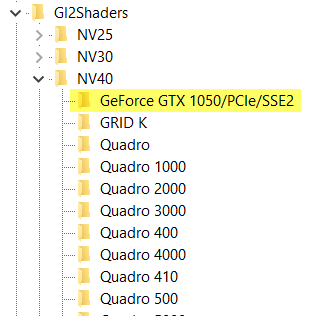
5) Go to "Computer\HKEY_CURRENT_USER\Software\SolidWorks\SOLIDWORKS 2020\Performance\Graphics\Hardware\Gl2Shaders" and create the new key under your graphic card manufacturing key with the copied valve Geforce --> NV40 RX,HD,AMD,ATI -->R420 Intel Graphic --> Other
6) RMB on the new created key and select new dword 32 bit value and make it name to "Workarounds" and set it's value to "31408" or "32408" or "33408" (If you using the Pascal series you can use 33408 ) and select the value type to "Hexadecimal"
7)Go to your graphic manufacturing key you using, for me I use GTX1050 then I go to "NVIDIA Corporation" key. And select "Geforce" sub key.
8) Double click at the 1st key under the main manufacturing key and double click at the "Workarounds" to change the value to "4000000" in hexadecimal type then click "OK" and do it again for all folder.
9) Go to View and then select "Refresh" or press F5
10) Now your SolidWorks frame rate already unleashed performance. 
Thanks and I hope this method will help you to use the SolidWorks more fun. 
EngineerM Conveyorman 
30 Sep 2020 Thailand.

วันอาทิตย์ที่ 13 กันยายน พ.ศ. 2563

swx number folder in C drive after install and use SolidWorks 2020 SP4.0

Hi, After I test the SP4.0 I found a lot of swx numbers folders in C drive and it cause every day when I use the SW. I delete its by below code ( save it to the name.bat and run it from drive locate you want )
@echo on :test FOR /D %%a in (C:\swx*) DO echo %%a :execute FOR /D %%a in (C:\swx*) DO RMDIR %%a /S /Q

วันอาทิตย์ที่ 2 สิงหาคม พ.ศ. 2563

การสร้างและการทดสอบ Load โครงหลังคาโค้งอย่างง่าย

ไฟล์ชิ้นงานสามารถดาวน์โหลดได้จากที่นี่ครับ (ไฟล์สร้างด้วย SolidWorks 2020 SP4.0)
http://raboninco.com/1ba8c

ตอนที่ 1 การสร้างโมเดล


ตอนที่ 2 การทดสอบโหลดบนโครงสร้าง

 
หากมีข้อสงสัยเกี่ยวกับวีดีโอหรือไฟล์ตัวอย่าง สามารถสอบถามได้โดยตรงครับ

วันอังคารที่ 31 ธันวาคม พ.ศ. 2562

SolidWorks 2020 SP0.1 Drawing problems.

SolidWorks 2020 SP0.1 Drawing problems.
I try to make the drawing with SolidWorks 2020 SP0.1 ( After it's destroyed my library file from vendors )

1.Balloon. Sometime when I use the balloon command, The software will crash.

2. Scale. After clicking the change scale view, sometimes it crashes.

3.Wrong display. When click saves the document the last page will show but the active page is wrong.

It makes me upset when I make drawing with SolidWorks 2020 SP0.1


วันพุธที่ 3 เมษายน พ.ศ. 2562

รวมปุ่มลัด และคำสั่ง SolidWorks ในหมวดต่างๆ พร้อมไอคอนและชื่อคำสั่ง

สวัสดีครับ ท่านผู้อ่านทุกท่าน
โปรแกรม 3 มิติ ที่ได้รับความนิยมสูงมากในปัจจุบัน ที่ไม่ต้องบอกก็ทราบว่าคือโปรแกรมอะไร
การฝึกฝนและจดจำคำสั่งสำหรับผู้เริ่มต้นจะเป็นอะไรที่ค่อนค่างยุ่งยาก จึงขอสรุปเป็นภาพและนำมาฝากทุกท่านครับ ขอให้ทุกท่านบรรลุผลในสิ่งที่มุ่งหวังทุกประการ


ท่านสามารถพิมพ์เป็นเอกสารหรือบันทึกเก็บไปใช้ได้ตามความประสงค์
ขอบคุณที่มาของเอกสารด้วยครับ


วันอังคารที่ 12 มิถุนายน พ.ศ. 2561

Realview on all hardware by easy step.

Hello World !!
      Today I will describe about How to Realview hack for all PC target to use SolidWorks.
Step 0. Check your VGA with registry
0.1 - Press "Windows"+"R " on your keyboard for lunch "Run"window command.
0.2 - Type " regedit " in run windows and press "Enter"
0.3 -  Follow " HKEY_CURRENT_USER"-->"SOFTWARE"-->"SolidWorks"-->"SolidWorks20XX"-->"Performance"-->"Graphics"-->"Hardware"-->"Current"

0.4 - Look in the right side at the " Renderer" and then double click and select copy for copy the value data of the current renderer. And then go to key " GI2Shaders" ( Hardware key sub folder )

0.5 - Check manufacturer for your VGA
    0.5.1 - If manufacturing by Nvidia  the subfolder will use NV for prefix naming like NV25,NV30,NV40 ( Number is the series of product chip )
    0.5.2 - If manufactured by AMD , ATI  the subfolder will use R and RV to naming prefix.
    0.5.3 - If other manufactured the subfolder will use name is "Other" 

Step 1. - Select correct subfolder to matching with your model graphic card.
" For example I have GTX1050 I will select NV40 subfolder."
1.1 - For make sure to validate the name of nvidia's chip you can follow this link.
1.2 - For make sure to validate the name of AMD/ATI's chip you can follow this link.

Step 2. - Create key in selected subfolder using copied name in step 0.3


Step 3. - Right Mouse Button click and create new "DWORD (32 Bit ) Value"


Step 4.- Naming to " Workarounds " and double click it to change value to "30408" in " Hexadecimal "
You can use 10008 , 20008 , 30008 , 30408 , 31408 

After this step you will fun with Realview Graphic.

วันพุธที่ 6 มิถุนายน พ.ศ. 2561

วิธีการสร้างลูกเบี้ยวด้วย SolidWorks

ผมได้อัดวีดีโออธิบายวิธีการสร้างไว้ตามลิงค์วีดีโอนี้ครับ สามารถเข้าไปศึกษากันได้ทุกที่ ทุกเวลา

มีข้อสงสัยสอบถาม หรือเสนอแนะ เรียนเชิญ Comment ที่ ช่อง Youtube ดังกล่าวครับ

ถังก๊าซ LPG มีอายุเท่าไหร่

สวัสดีครับท่านผู้อ่าน เกี่ยวกับคำถามเรื่องอายุถังก๊าซ LPG ที่ใช้ในรถยนต์ ที่ถามกันบ่อยๆ เพราะบางท่านได้บอกว่า ถังมีอายุ 10 ปีบ้าง 20 ปีบ้าง ...